
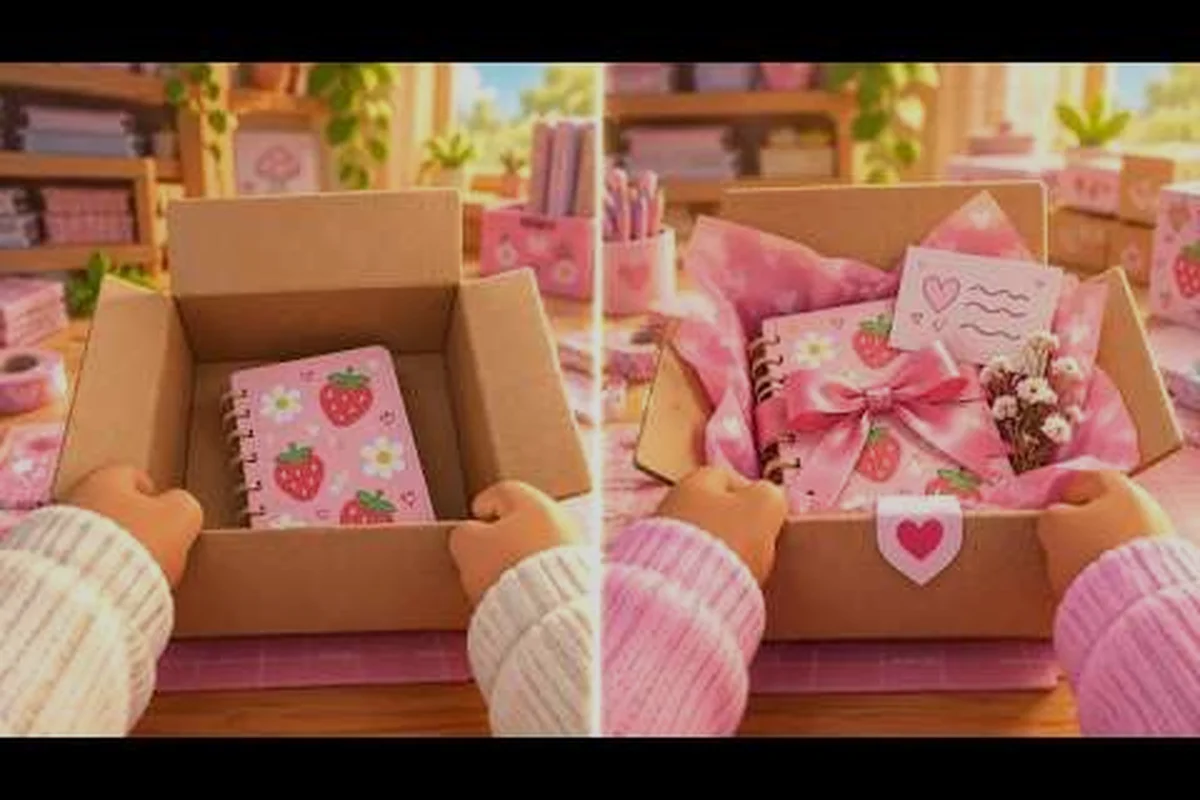
A clean My Small Business Roblox shop setup decides how fast your first coins arrive, because the printer, cut surface, and packing table only pay off when they sit within a few steps of each other. This guide walks you through controls on PC and mobile, a workstation layout that removes backtracking, and the early upgrades that keep orders flowing instead of piling up.
Why Your Shop Layout Matters More Than Your First Design
New owners usually obsess over sketches and ignore floor space, then wonder why every order takes three times longer than it should. The production loop in this tycoon is physical: you sketch a product in the Design Studio, print it, cut it, then pack it with the right box, packaging, and a thank-you card before shipping. Every meter between those stations is time you never get back.
According to the official My Small Business game page, the core loop runs from the Design Studio through printing and cutting to packing customer orders with cute packaging and goodies. That description sounds simple, but the placement of each station is entirely your call, and placement is where beginners lose their first hour.
A tight layout gives you three concrete benefits that show up in your first real session: you cut the walk between the Printer, Cutting Station, and Packing Table to a few steps, you keep uncut prints visually separated from finished goods so you never ship the wrong item, and you leave floor space open for the Box Organizer and Big Paper Tray you'll unlock once order volume climbs. Treat the shop floor like a mini assembly line — raw prints on one side, packed orders on the other — and the tycoon's physical loop stops fighting you.
-
Shorter walking distance between print, cut, and pack, which compounds across dozens of orders per session.
-
Clear visual separation so you never confuse a finished product with an uncut print.
-
Room to grow when you add the Box Organizer, Big Paper Tray, and extra catalog slots later.
The developer behind the game, ScriptedJulia, runs the Future CEOs Roblox group, which is the verified source for updates and events. Community reports from that group and from creator videos consistently point to the same lesson: efficiency beats decoration in the first few sessions.
The Three-Station Rule
Think of your shop as three zones. The production zone holds the printer and cut surface. The packing zone holds the packing table, boxes, and packaging supplies. The display zone is customer-facing and holds your catalog and decor. Keep production and packing adjacent, and let the display area breathe.
If you build in that order, you will never sprint across the store to grab a box while a customer waits. Players who rearrange their shop after ten orders almost always report the same fix: move the packing table next to the cut surface first.
My Small Business Roblox Controls Guide for PC and Mobile
The My Small Business Roblox controls guide matters because the game uses standard Roblox input plus a handful of proximity prompts, and mixing them up is the most common reason a new owner stands frozen next to a printer. On PC you rely on WASD movement, mouse look, and the E key or a click to trigger prompts. On mobile you rely on the virtual thumbstick, drag-to-look, and tapping the on-screen prompt buttons.
The table below summarizes the practical differences so you can pick your platform with open eyes, but treat it as a starting point rather than a verdict. PC rewards precision: the E key fires instantly, so you can queue a restock on a shelf, pivot with the mouse, and hit the register prompt in one fluid motion. Mobile trades that speed for portability, and the pinch-to-zoom gesture is genuinely useful for reading small price tags on a crowded display. If you plan to grind long shifts, the mouse wheel camera and WASD strafing make PC the more comfortable choice for the My Small Business Roblox shop setup guide workflow.
| Action | PC input | Mobile input |
|---|---|---|
| Move around the shop | WASD keys | Left virtual thumbstick |
| Look and aim | Mouse movement | Drag anywhere on the right side |
| Interact with a station | E key or left click on the prompt | Tap the floating prompt button |
| Open menus and shop UI | Click the on-screen icons | Tap the icons along the screen edge |
| Zoom or adjust camera | Mouse wheel or right-drag | Pinch gesture |
The biggest adjustment for mobile players is camera control, since dragging to look while holding a thumbstick takes practice. PC players have the opposite problem: they move fast and overshoot prompts, triggering the wrong station. Slow down for the first five orders and the muscle memory arrives quickly.
Rebinding and Sensitivity
Roblox itself lets you adjust camera sensitivity and, on PC, remap movement keys through the platform settings rather than in-game menus. If your camera feels twitchy near the packing table, lower sensitivity before you blame the game. On mobile, a slightly larger thumbstick dead zone reduces accidental drift when you tap prompts.
Prompt Priority
When two stations overlap, the nearest prompt wins. That is why a cramped layout causes misclicks: your printer and cut surface sit close enough that the wrong prompt appears. Leave at least a small gap between interactive objects so the prompt you want is always the one that shows.
My Small Business Roblox PC Guide: Building a Fast Workflow
The My Small Business Roblox PC guide angle is all about speed, because keyboard and mouse let you chain actions faster than any other input method. The trick is to arrange your stations so your character never needs a long walk between the four core steps: sketch, print, cut, pack.
Here is a workflow that experienced PC players describe in community videos, adapted into a repeatable sequence that leans on the WASD movement and hotkey prompts the PC build exposes: keep the Design Studio, printer, cut surface, and packing table within a short loop so each interaction prompt fires the moment you arrive. The payoff is throughput — chaining sketch, print, cut, and pack without a long walk keeps your order timer from bleeding out while you reposition.
-
Sketch in batches at the Design Studio so you always have a product ready when an order appears.
-
Queue prints at the printer, then move immediately to the cut surface rather than waiting idle.
-
Cut and stage finished items on a surface near the packing table so you can grab them without a detour.
-
Pack with the smallest suitable box, add packaging and a thank-you card, then ship.
-
Reset the station before starting the next order so nothing blocks the prompt.
The Order Clipboard upgrade, priced at 15 Coins according to community data, lets you queue three orders at once. On PC this is close to mandatory, because queuing orders means you can sketch and print continuously instead of standing around waiting for the next customer.
Camera and Field of View
Position your camera slightly above and behind your character so you can see the printer, cut surface, and packing table in one frame. If your layout is tight enough, a single camera angle covers the whole loop, which removes the pause of swinging the view between stations.
Keyboard Rhythm
PC players who get fast tend to develop a rhythm: interact, move, interact, move. Because the E key and click both trigger prompts, you can keep your left hand on movement and your right hand on the mouse, tapping prompts without breaking stride. Practice the loop on cheap products before you attempt it on complex designs.
My Small Business Roblox Mobile Guide: Making Touch Controls Work
The My Small Business Roblox mobile guide deserves its own section because touch input changes how you should build your shop. On a phone or tablet, camera control and prompt tapping compete for the same fingers, so a layout that requires constant turning will feel clumsy no matter how good your design is.
Mobile owners should prioritize three adjustments: camera sensitivity, thumb reach, and prompt timing. Drop your camera sensitivity slider to roughly 30–40% so a single swipe pans instead of whipping past the packing table, and keep your right thumb anchored near the bottom-right corner where the Box Organizer prompt and checkout button spawn. Because the Restock and Checkout prompts sit close together on a phone screen, overshooting a tap can trigger the wrong action mid-order, so practice lifting your thumb cleanly before each tap rather than sliding between buttons.
-
Compact layout first. Put every station within one screen-width of the packing table so you rarely need to rotate the camera.
-
Tap, do not drag, near stations. Lift your thumb before tapping a prompt so the camera does not swing mid-interaction.
-
Use a stable grip. Resting the device on a table frees both hands and dramatically improves prompt accuracy.
Community reports from mobile players suggest that the Box Organizer upgrade, which reveals the exact box size you need, is even more valuable on touch screens because it removes a menu check from every single order. Fewer taps per order is the entire mobile optimization game.
Managing Screen Space
The on-screen UI eats a meaningful chunk of a phone display, so keep your camera zoomed out slightly to see prompts clearly. If a station prompt hides behind a UI icon, rotate your view a few degrees rather than walking around, which saves time and avoids accidental interactions.
Battery and Session Length
Mobile sessions drain battery faster than PC sessions, especially with continuous camera movement. Plan shorter, focused sessions where you complete a set number of orders rather than leaving the game running. A tight layout means each session finishes more orders before the device heats up.
Shop Setup Upgrades Ranked by Early Value
Upgrades are where new owners burn coins, so it helps to see them ranked by what they actually fix. The table below reflects prices and effects reported by players and shown in community guide videos, and it is the heart of any My Small Business Roblox shop setup guide worth reading.
| Upgrade | Reported cost | What it fixes | Priority |
|---|---|---|---|
| Order Clipboard | 15 Coins | Queues three orders so you are never idle | Highest |
| Box Organizer | 35 Coins | Shows the exact box size, removing guesswork | High |
| Big Paper Tray | 35 Coins | Reduces paper refill interruptions | High |
| Extra catalog slots | Varies | Lets you offer more designs to customers | Medium |
| Cosmetic decor | Varies | Improves shop appeal, no production gain | Low |
The logic is straightforward: buy the upgrades that remove a decision or a trip, not the ones that look nice. The Order Clipboard removes waiting. The Box Organizer removes a menu check. The Big Paper Tray removes a refill run. Decor removes nothing, which is why it comes last.
When to Buy Each Upgrade
Buy the Order Clipboard as soon as you can afford it, ideally within your first few orders. Then save toward the Box Organizer and Big Paper Tray together, since both sit at 35 Coins and both attack the same problem: interruptions during packing. Only after those three are in place should you consider catalog expansion, and a catalog slots breakdown explains how extra slots change your product mix.
What Not to Buy Early
Skip anything that only changes appearance in your first sessions. Coins spent on decor are coins not spent on the Clipboard, and the Clipboard pays for itself within a handful of orders. If you want a broader look at spending discipline, the latest guide on common beginner mistakes covers the traps in more detail.
Planning Your First Session Around the Setup
A good My Small Business Roblox guide 2026 session plan looks different from a 2025 one only in emphasis: the community now agrees that layout and the first three upgrades matter more than raw order volume. Your first session should be short, deliberate, and focused on building the loop rather than maximizing coins.
Use this order of operations: complete the Design Studio prompts first so the sketching tutorial is finished before you ever touch the printer, then place the printer, cut surface, and packing table in a tight triangle so the first order never sends you on a long walk. Take one order end to end slowly, noting every menu you open and every trip between stations, then spend your first coins on the Order Clipboard rather than a cosmetic upgrade — the clipboard trims the per-order menu time that otherwise eats into your profit margin. Run three orders back to back and time yourself before adjusting station spacing, since the triangle only pays off once you have measured where the walk actually slows you down.
-
Complete the Design Studio prompts so you understand sketching before you touch the printer.
-
Place the printer, cut surface, and packing table in a tight triangle before your first order.
-
Take one order end to end slowly, noting every walk and every menu you open.
-
Buy the Order Clipboard with your first coins.
-
Run three orders in a row and time yourself, then adjust station spacing.
-
End the session by writing down one change to test next time.
That last step is what separates owners who improve from owners who plateau. A short written note about what felt slow is worth more than an hour of extra grinding, and a daily routine framework can turn those notes into a repeatable plan.
Setting a Coin Floor
Before you buy anything, decide a minimum coin balance you will not drop below. This prevents the classic mistake of spending everything on an upgrade and then lacking the coins for materials on the next order. A floor of roughly one upgrade's worth of coins keeps you flexible.
Timing Your Exit
End sessions when you finish an order, not mid-pack. Leaving the game with a half-packed box means you return to a confusing state and waste the first minute of your next session figuring out where you were. A clean exit is a small habit with an outsized payoff.
Common Setup Mistakes That Cost Real Time
Most setup problems trace back to a handful of repeatable errors, and spotting them early saves hours. The comparison below pairs each mistake with its fix so you can audit your own shop in under a minute. The most common culprits are station placement and print timing: a Printer, Cut Surface, and Packing Table scattered across the floor force a long walk on every single order, while printing before orders exist clogs your shelves with unsold paper. Guessing box sizes triggers repacking, which is why the Box Organizer pays for itself fast, and decorating before upgrading stalls your income loop. One more trap is prompt overlap — interactive objects placed too close together fire the wrong station, so leave clear gaps between each one.
| Mistake | Symptom | Fix |
|---|---|---|
| Stations spread across the shop | Constant long walks per order | Group printer, cut surface, and packing table |
| Printing before orders exist | Inventory clutter and wasted paper | Print only what an order requires |
| Guessing box sizes | Repacking and wasted packaging | Buy the Box Organizer |
| Decorating before upgrading | Slow loop, low income | Upgrade first, decorate later |
| Ignoring prompt overlap | Wrong station triggers | Leave gaps between interactive objects |
The pattern behind every row is the same: the mistake adds a step, and steps multiply across orders. Fixing one row can cut several seconds from every order, which adds up to minutes per session. Players who track their own times often find that a layout fix beats any single upgrade purchase.
Auditing Your Layout
Walk one full order and count the number of times you change direction. If the answer is more than two, your stations are too far apart. Rearranging costs nothing but a few seconds, and it is the cheapest improvement available to any owner.
Auditing Your Upgrades
List what you have bought and what problem each purchase solved — for example, a Premium Payouts-eligible gamepass or a Roblox Premium subscription should map directly to a removed manual step, like eliminating the need to hand-trade items or re-list stock daily. If an upgrade does not map to a specific removed step, it was probably a mistake. Run this audit monthly against your Robux spend ledger: any purchase with no measurable time-save or sales lift gets flagged for refund or removal. This simple audit keeps future spending honest and prevents impulse buys, especially before seasonal events when limited-time shop items tempt quick Developer Product purchases.
Frequently Asked Questions
What is the best first upgrade in My Small Business Roblox?
The Order Clipboard at 15 Coins is the strongest first purchase because it queues three orders, which eliminates idle time between customers. Buying it early means every later session runs smoother, and it costs less than the Box Organizer or Big Paper Tray.
Do PC and mobile players need different shop layouts?
Yes, slightly. Mobile players should keep stations within one screen-width to avoid constant camera rotation, while PC players can spread out a little more because mouse look is faster. Both platforms benefit from keeping the printer, cut surface, and packing table adjacent.
How do I stop wasting paper on unnecessary prints?
Print only what an active order requires, and sketch in small batches rather than filling your inventory. The Big Paper Tray upgrade at 35 Coins reduces refill interruptions, but the real fix is discipline: check the order before you start the printer.
Is the Box Organizer worth 35 Coins?
It is worth it for almost every owner, because it reveals the exact box size and removes a menu check from every single order. On mobile the value is even higher, since fewer taps per order directly translates into faster packing and less frustration.
How long should my first session be?
Keep it short and focused, roughly enough time to complete five to ten orders after buying the Order Clipboard. The goal of session one is understanding the loop and testing your layout, not maximizing coins, so a clean finish beats a long grind.
What a Strong Shop Setup Actually Delivers
A well-planned My Small Business Roblox shop setup turns a slow, confusing first hour into a repeatable routine where every order follows the same short path. Group your stations, buy the upgrades that remove decisions and trips, and audit your layout after every session so small inefficiencies never become permanent habits. Owners who treat the shop floor as a tool rather than a showroom consistently finish more orders in less time, and that advantage compounds with every session you play.